
CVIZZA BLOG
Find the Right CV Template Before You Download
Explore CVizza’s CV templates with visual previews. Compare designs, try them with your own content, and review your CV before downloading
Choosing a CV template is easier when you can see what it looks like. CVizza now includes template previews in CV Builder, so you can explore designs before applying one to your CV.
The previews give you a quick look at each template’s layout, typography, spacing, and section structure. Once you choose a design, the live preview shows how it works with your own content.
See the Design Before You Choose
A template name tells you very little about how a CV will look. A visual preview makes the choice more practical.
You can compare how different designs present contact details, work experience, education, and other sections. Look for a layout that makes your most relevant information easy to find and gives your content enough room.
The template gallery uses fictional sample content to demonstrate each design. These examples show the template’s appearance; they do not contain your personal information.
Try a Template With Your Own Content
To explore the available designs, open a CV in CV Builder and select Change template.
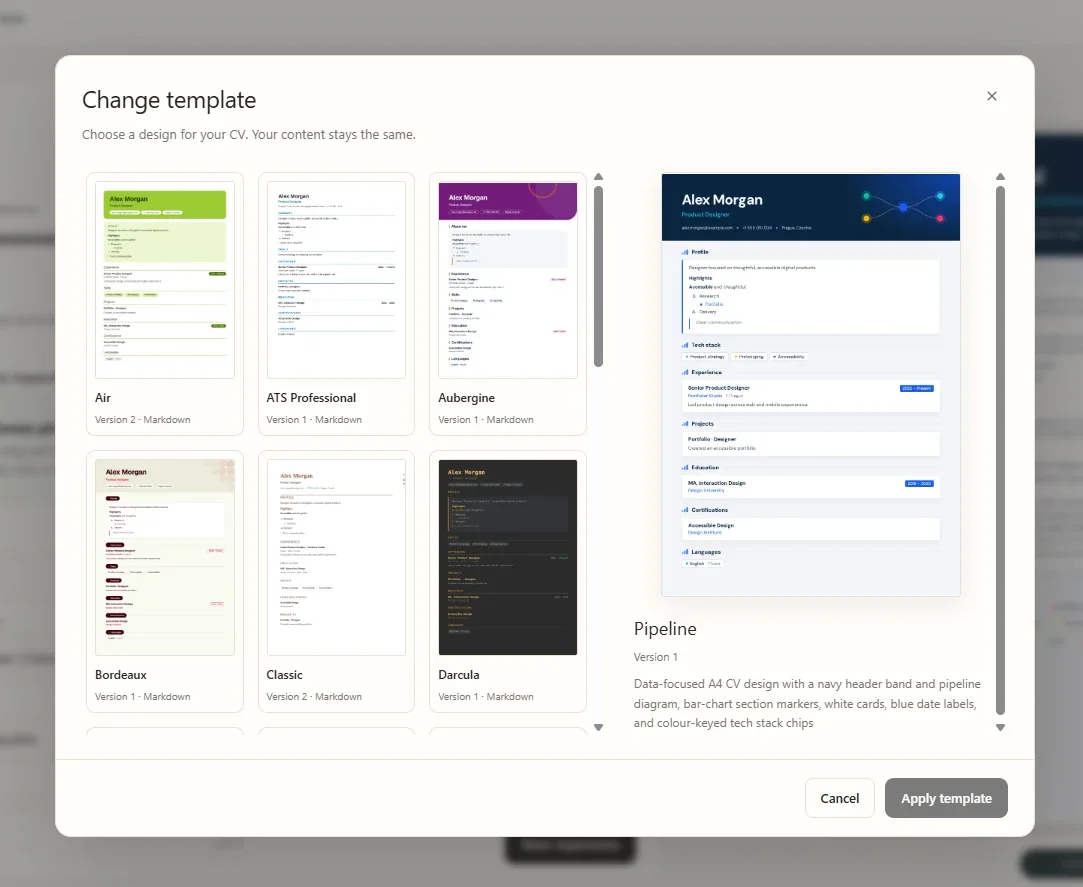
Choose a template to inspect its preview, then select Apply template when you are ready. After applying it, review your CV in the live A4 preview.
Your content stays with the CV when you change its template. You can try a different presentation without entering your experience, education, or skills again.
The sample preview is a useful starting point, but your own CV is the best test. A design that looks spacious with a short example may need more pages for a longer career history. Check the page count, section placement, and readability with your actual text.
Choose a Layout That Fits Your CV
A good template helps the reader understand your experience. When comparing designs, consider a few practical questions:
- Is your name and professional headline easy to find?
- Can someone quickly identify your recent roles and employers?
- Are headings and dates clear?
- Does the layout suit the amount of content you want to include?
- Does it display the sections that matter for this application?
Different templates may support different sections or photo placement. If you want to include a photo, choose a design that displays one. Adding a photo to your CV does not automatically make it appear in every template.
Review the Result Before Exporting
The live preview helps you check your CV as you edit. Use it to spot long descriptions, crowded sections, or details that would benefit from clearer wording.
Before downloading, review the full document—not just the first page. Confirm that your contact details are correct, your most relevant experience is prominent, and every included section contributes something useful.
You can then download your CV as PDF or editable Word using the selected template. Plain text is also available when you need a simple text version. Give the downloaded file a final check before sending it.
Keep a Version for Each Opportunity
You may want to try another layout or tailor your content for a particular role while keeping your existing CV available.
From Your CVs, open the ⋯ menu beside a draft and select Make a copy. The copy gives you a separate draft to edit and style for the next application.
Template previews make the first choice easier. The live preview helps you refine the result. Together, they give you a clearer view of your CV before it reaches a recruiter.