
Suggest an idea for CVizza
Browse community ideas, suggest an improvement, follow the team's response, and edit or withdraw your ideas in the CVizza Help Center.
This guide explains how to use Ideas in the CVizza Help Center: browse suggestions from other users, propose an improvement of your own, follow the team's response, and edit or withdraw your ideas. Ideas are shared with the community, so this guide also explains what other people can see.
Before you start
You need a CVizza account and must be signed in to read or submit ideas. To open Ideas, select your name at the bottom of the workspace sidebar, then Help, and select Ideas in the Help Center sidebar.
Ideas are for product suggestions. For a question about your own account or a problem you need solved, open a private ticket instead, as described in Get help and contact support.
Browse the ideas board
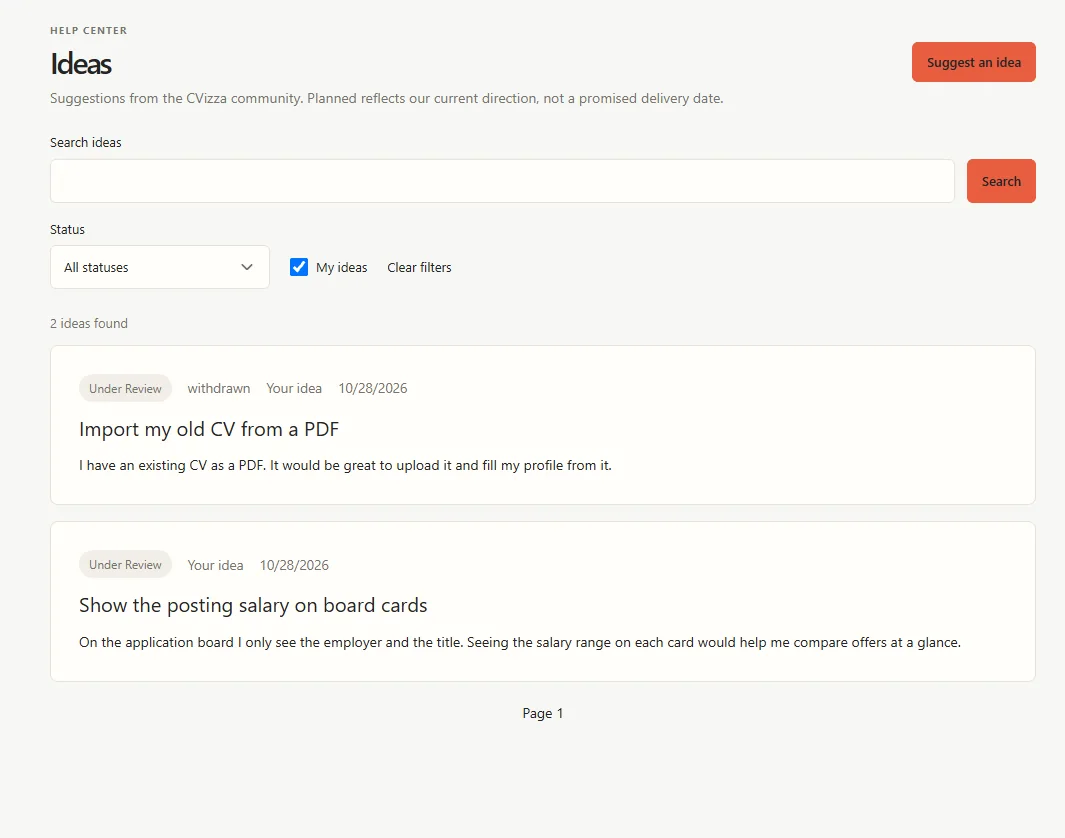
The Ideas page lists suggestions from all users, newest first, 20 per page. Each card shows the review status, who suggested it, the date, the title and the start of the description. Team response available means the CVizza team has replied.
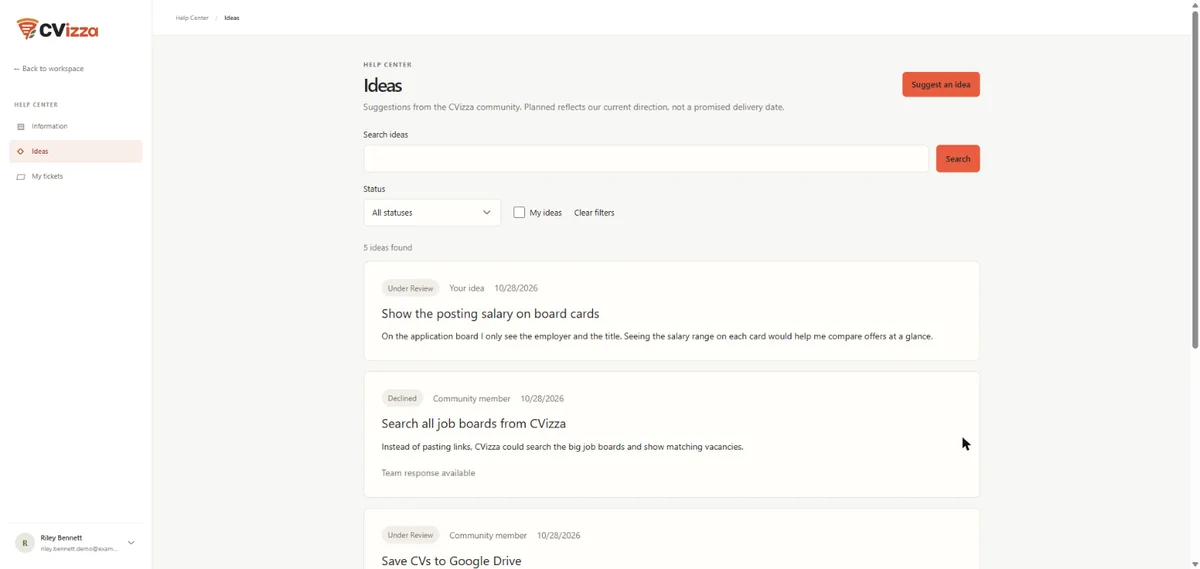
- Search ideas: words from the title, the description or the team response. Select Search to run it.
- Status: show only ideas in one review status.
- My ideas: show only your own suggestions.
- Clear filters: show all ideas again.
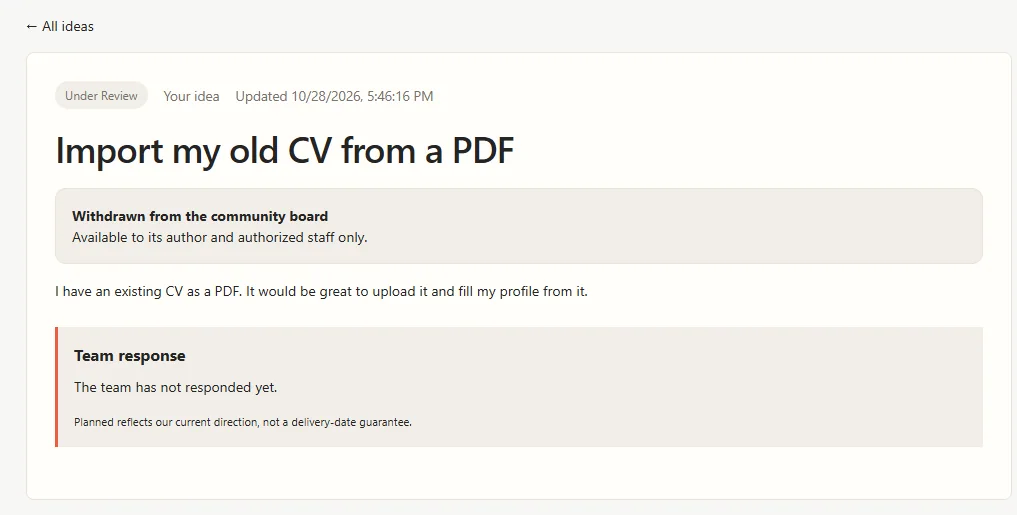
Select a title to open the idea and read its full description and the team response.
Who can see your idea
- Every signed-in CVizza user can read your idea, its review status and the team response.
- Other users see you as Community member. Your name, email address, profile and CVs are never shown.
- On your own ideas you see Your idea instead.
Because ideas are shared, keep them about the product. Do not include contact details, passwords, CV content, your career history or information about other people.
Suggest an idea
- On the Ideas page, select Suggest an idea.
- Enter a short Title (up to 200 characters) that names the improvement.
- Select Search for similar ideas before submitting to check whether someone has already suggested it. If so, read the team response there instead of adding a duplicate.
- In Description (up to 5,000 characters), describe the problem you have today and the improvement that would help. A concrete example of your situation makes the idea easier to understand.
- Select Submit idea.
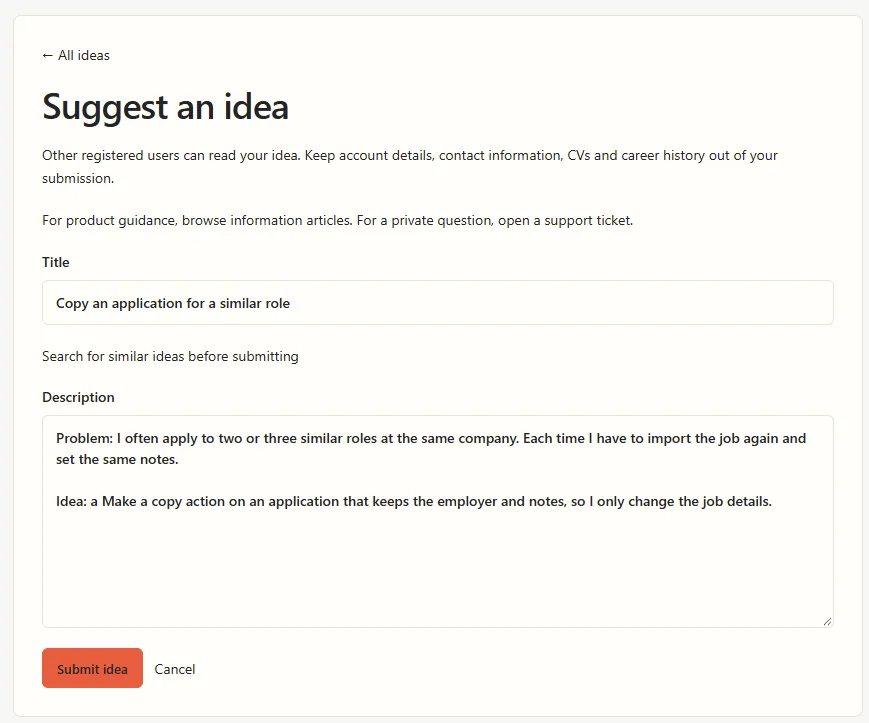
Ideas are plain text. Formatting such as bold text or lists is not applied, but line breaks are kept. You can submit up to five ideas per hour.
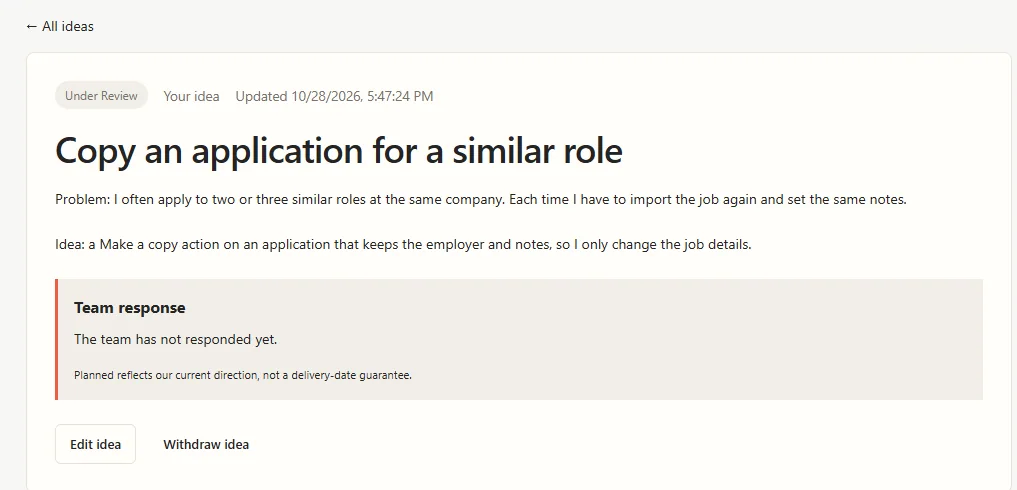
CVizza opens your new idea with the status Under review. The Team response section shows "The team has not responded yet." until the team replies.
Understand the review status
The CVizza team reviews ideas and sets one of these statuses:
| Status | Meaning |
|---|---|
| Under review | The idea is new or the team is still considering it |
| Planned | The idea fits the team's current direction |
| In progress | The team is working on it |
| Released | The improvement is available in CVizza |
| Declined | The team does not plan to build it. The team response usually explains why |
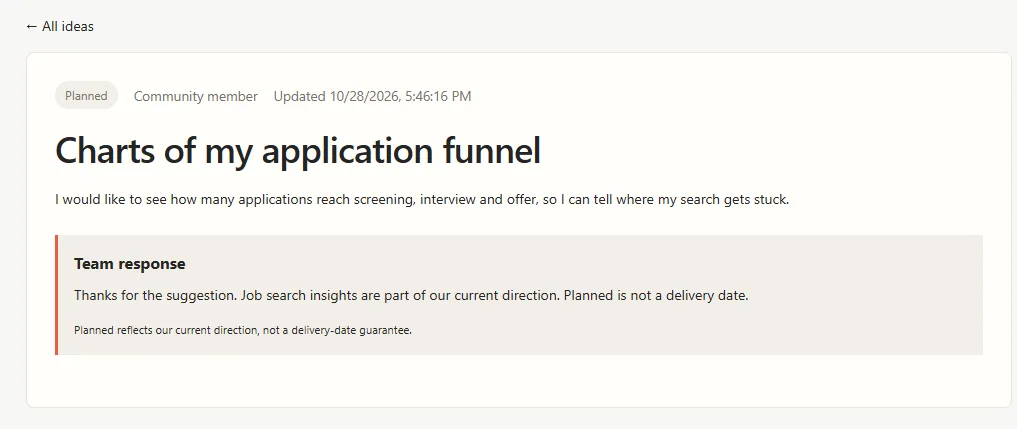
Planned reflects the team's current direction. It is not a promise of a delivery date.
The team response appears on the idea page for everyone who can see the idea.
CVizza does not send notifications when the status or the team response changes. Open Ideas and select My ideas to check on your suggestions. There is no voting or comment thread.
Edit your idea
While your idea is Under review, you can still improve it:
- Open the idea and select Edit idea.
- Change the Title or Description.
- Select Save changes.
Once the team has moved the idea to another status, it can no longer be edited, because the team has reviewed that exact proposal. If you want to suggest something different, submit a new idea.
Withdraw your idea
If you no longer want your idea on the board, open it and select Withdraw idea, then confirm. You can withdraw an idea in any status.
A withdrawn idea disappears from the board and from search for other users. You still find it under My ideas, marked as withdrawn. Withdrawing cannot be undone, and a withdrawn idea cannot be edited. Submit a new idea if you change your mind.
If the team hides your idea
The team can hide an idea from the board, for example if it contains personal details. A hidden idea stays visible to you under My ideas, with the team's explanation. Editing a hidden idea does not make it visible again.
If something does not work
- You cannot tell whether your idea was submitted. If the connection drops, the button changes to Check submission. Select it to send the same idea again safely: CVizza does not create a duplicate.
- Edit idea is missing. The idea has already been reviewed or was withdrawn. Submit a new idea instead.
- The idea changed while you were editing it. If CVizza says the idea was changed, select Reload latest and make your edit again.
- You reached the limit. You can submit up to five ideas per hour. Wait and try again later.
- Your ideas after account erasure. If you erase your CVizza account, your ideas are deleted with it.
What to do next
- Ask a private question with Get help and contact support.
- Browse the information articles for step-by-step guides.