
Get help and contact support
Find answers in the CVizza Help Center, open a private support ticket, follow replies, and resolve or reopen your request. A step-by-step guide.
This guide shows where to find help in CVizza and how to ask the support team a private question. You can search the information articles first, and if they do not answer your question, open a private ticket and talk to support in a conversation that only you and authorized CVizza support staff can read.
Open the Help Center
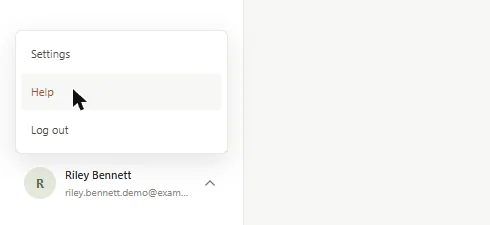
Select your name at the bottom of the sidebar, then Help.
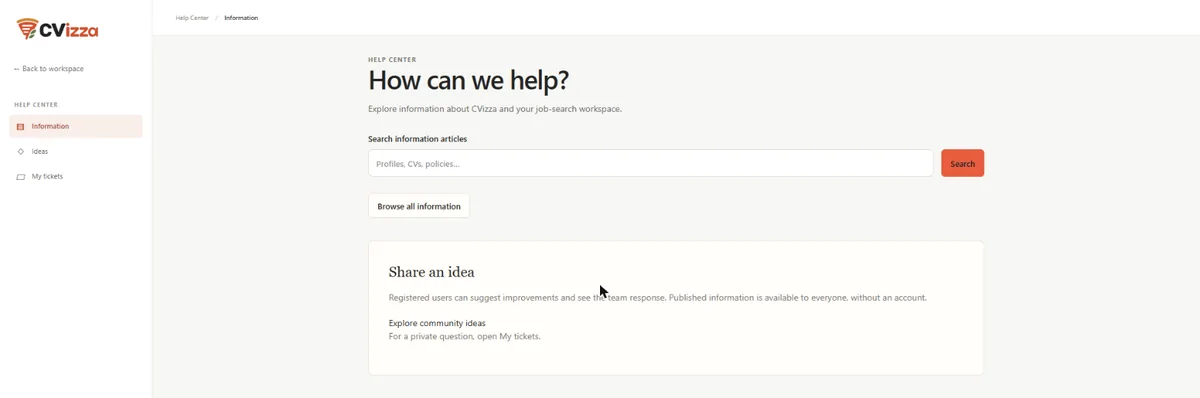
The Help Center has its own sidebar:
- Information: search and browse the information articles, such as this guide.
- Ideas: suggest improvements to CVizza and see the team's response. Ideas are visible to other registered users, so never post private details there.
- My tickets: your private conversations with the support team.
Select Back to workspace to return to your CVs and applications.
Search the information articles first
Many questions are already answered in a guide. Type a few words into Search information articles, for example "export PDF" or "two-factor", and select Search, or select Browse all information to see every article. Information articles are public, so you can read them without signing in.
Open a private ticket
Use a ticket for a question about your own account or a problem you cannot solve with the articles.
- In the Help Center, select My tickets, then Open a ticket.
- Enter a short Subject (up to 200 characters) that names the problem, for example "PDF download does not start".
- In Message (up to 10,000 characters), describe what you were doing, what you expected and what happened instead. Include the steps you already tried and the browser you use.
- Select Open ticket.
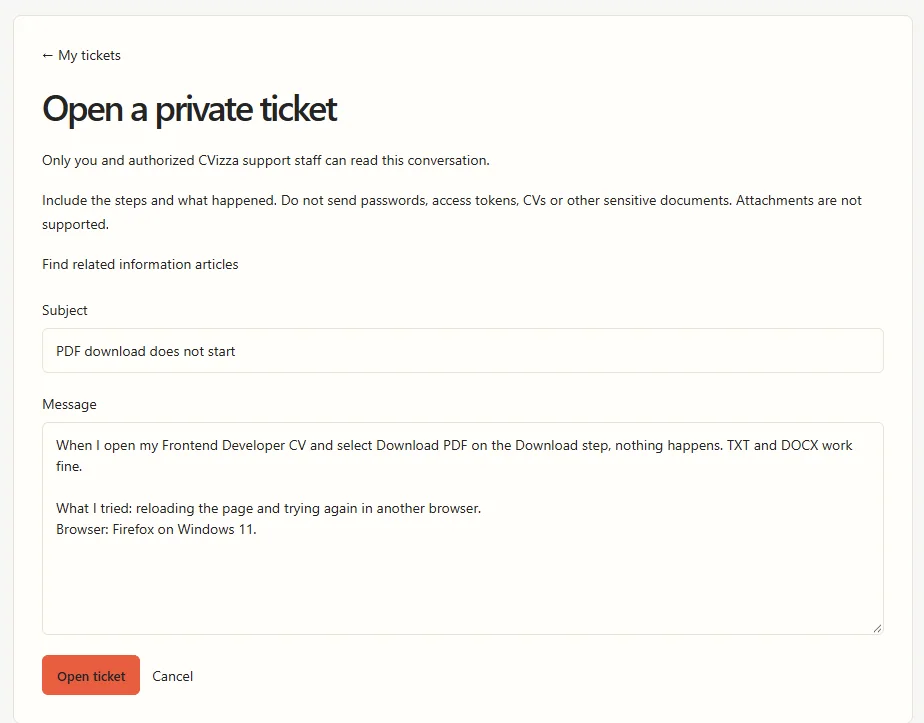
The form also offers Find related information articles, which searches the articles for your subject.
Before you send, keep these points in mind:
- Messages are plain text. Web addresses and links to information articles become clickable, but formatting such as bold text or lists is not applied.
- Attachments are not supported. Describe what you see instead of sending a screenshot or a file.
- Never include passwords, authenticator codes, access tokens, your CV or other sensitive documents. Support never needs them.
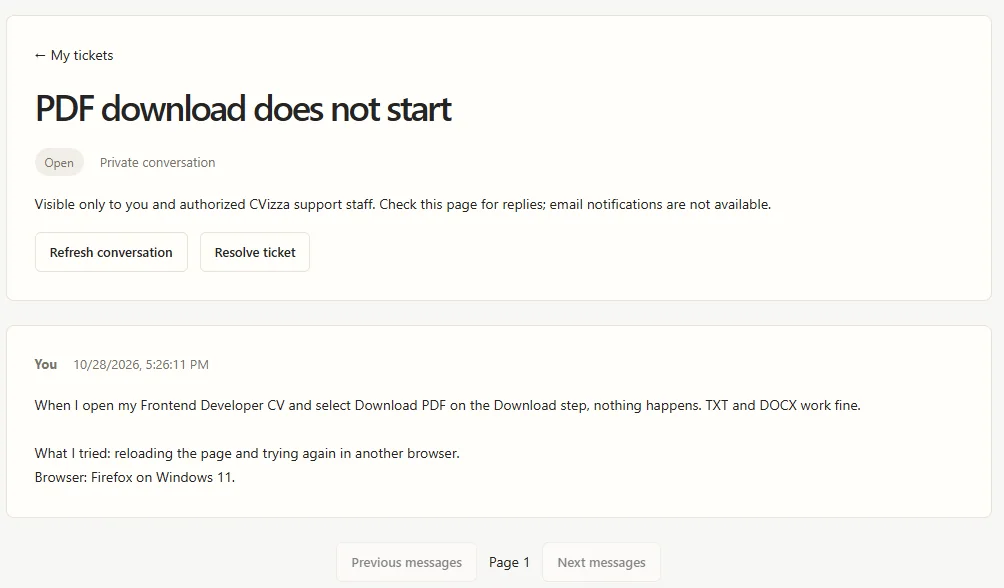
CVizza opens the new ticket with the status Open. Your messages are labelled You.
Check for replies
CVizza does not send email or push notifications about tickets. Come back to My tickets to check for answers.
- Open My tickets and select your ticket.
- Select Refresh conversation to load new messages.
Replies from the team are labelled Support and marked with a coloured edge. When support has answered, the ticket status changes to Waiting for you.
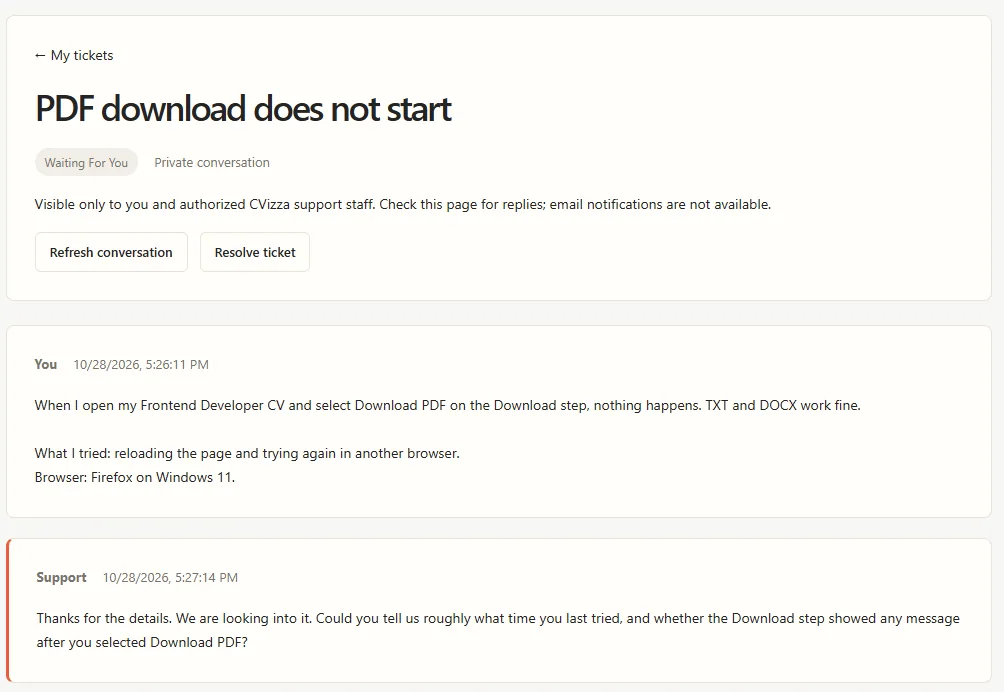
Messages are shown from oldest to newest, 20 per page. In a long conversation, use Next messages, or Latest messages to jump to the newest page.
Reply to support
- Scroll down to Reply and type your answer in Message.
- Select Send reply.
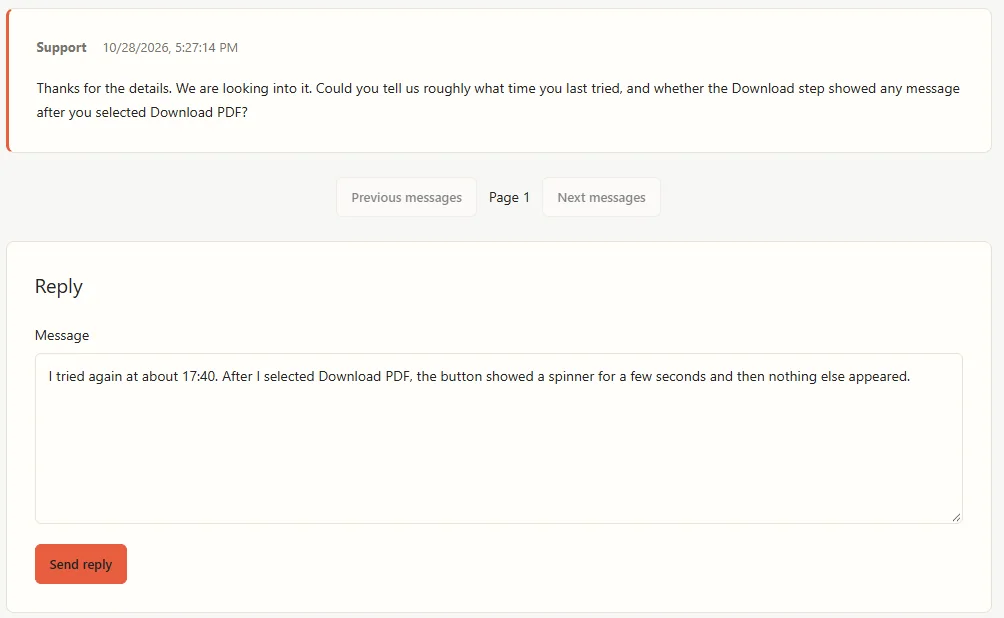
Your reply moves the ticket back to Open, so the team knows it is their turn. Sent messages cannot be edited or deleted. If you forgot something, send another reply.
If you leave the page while a message is unsent, CVizza warns you first. Unsent text is not kept when you reload the page or sign out.
Find your tickets
My tickets lists all your tickets with their status and the time of the last activity. The most recently active ticket is at the top.
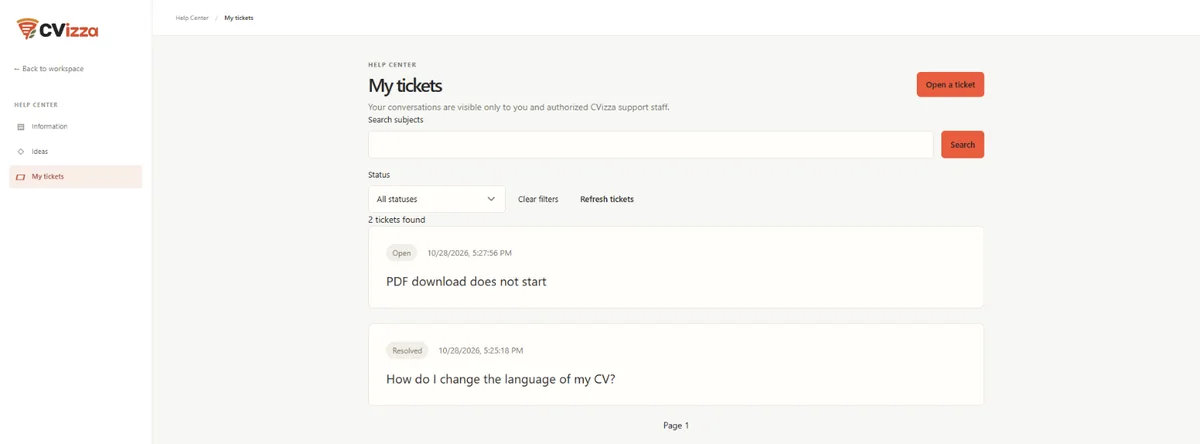
- Search subjects: find a ticket by words in its subject, then select Search.
- Status: show only Open, Waiting for you or Resolved tickets.
- Clear filters shows all tickets again, and Refresh tickets checks for changes.
The statuses mean:
| Status | Meaning |
|---|---|
| Open | Waiting for the support team: you opened the ticket or replied last |
| Waiting for you | Support has replied and is waiting for your answer |
| Resolved | The request is complete. Reopen it to continue |
Resolve or reopen a ticket
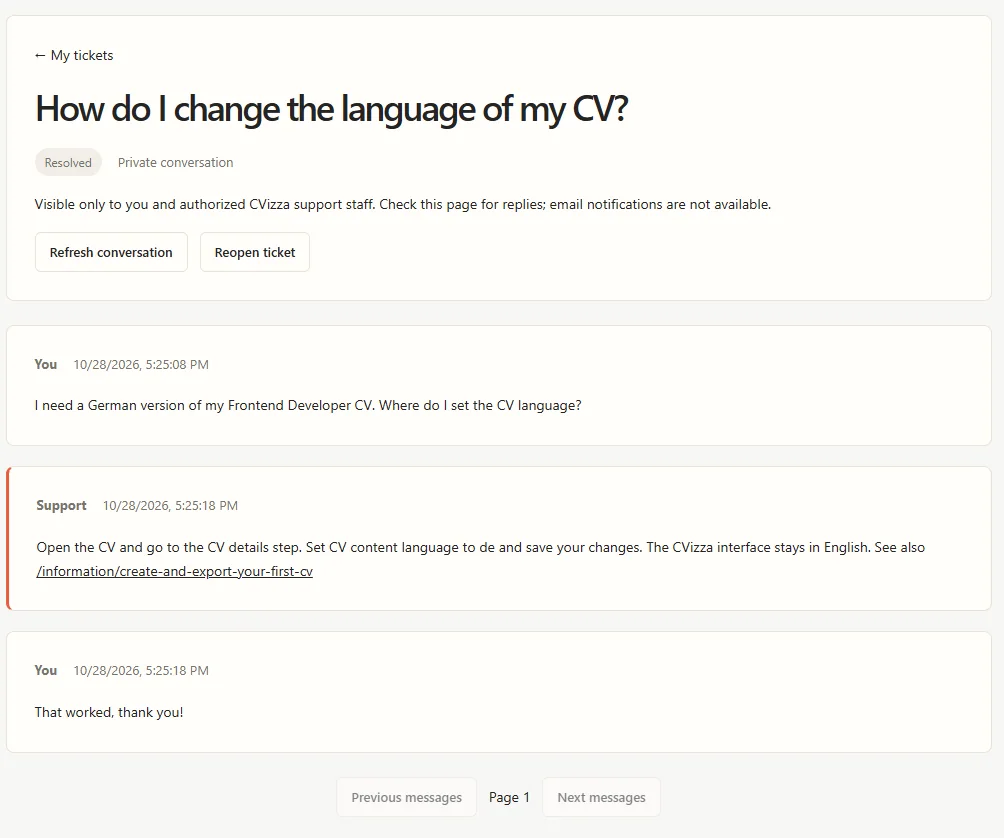
When your problem is solved, select Resolve ticket at the top of the conversation. The support team can also resolve a ticket.
A resolved ticket keeps the whole conversation, but you cannot reply to it. If the problem comes back, select Reopen ticket and then send your reply. Reopening keeps the history in one place, so you do not need to explain everything again.
If you cannot sign in
You need to be signed in to use tickets. If you cannot sign in:
- Use Forgot password? on the login page to reset your password.
- If you never received your confirmation code, use Resend confirmation code.
- If you still cannot get in, email [email protected]. Do not send passwords, authenticator codes or sensitive documents by email either.
Privacy and limits
- Only you and CVizza staff with support access can read your tickets. Other users never see them, and a ticket is never published as an idea or an article.
- CVizza does not attach your profile, CVs or any other account data to a ticket. Support sees only what you write.
- There is no live chat and no guaranteed response time.
- You can open up to five tickets per hour and send up to 60 messages per hour. If you reach a limit, wait and try again later.
- If you erase your CVizza account, your tickets and their conversations are deleted with it.
If something does not work
- You cannot tell whether your ticket or reply was sent. If the connection drops, the button changes to Check submission or Check reply. Select it to send the same message again safely: CVizza does not create a duplicate. Do not open a second ticket for the same request.
- You cannot reply to a ticket. It is probably Resolved. Select Reopen ticket first.
- You see no new reply. Select Refresh conversation. Replies do not appear on their own and no email is sent.
- The ticket was changed while you were looking at it. If CVizza says the ticket changed, select Refresh conversation and try again. Your unsent text stays in the form.
What to do next
- Browse the information articles for step-by-step guides.
- Start with Getting started with CVizza if you are new to the workspace.
- Protect your account with two-factor authentication.