
Turn on two-factor authentication
Protect your CVizza account with an authenticator app: set up two-factor authentication, sign in with a code, and add or remove authenticators.
Two-factor authentication adds a second step to signing in to CVizza. After your password, you enter a six digit code from an authenticator app on your phone or another device. Someone who learns your password still cannot open your CVs, profile and applications without that code. This guide shows how to turn it on, how signing in works afterwards, and how to manage your authenticators.
Before you start
- Install an authenticator app on your phone or another device you control. Any app that supports time-based one-time passwords (TOTP) works.
- Make sure the clock on that device is set automatically. The codes depend on the time, so a wrong clock produces codes that CVizza rejects.
- Have a few minutes where you can stay on the page until setup is finished.
Step 1: Open the Security settings
- Log in and open your account settings.
- Select Security.
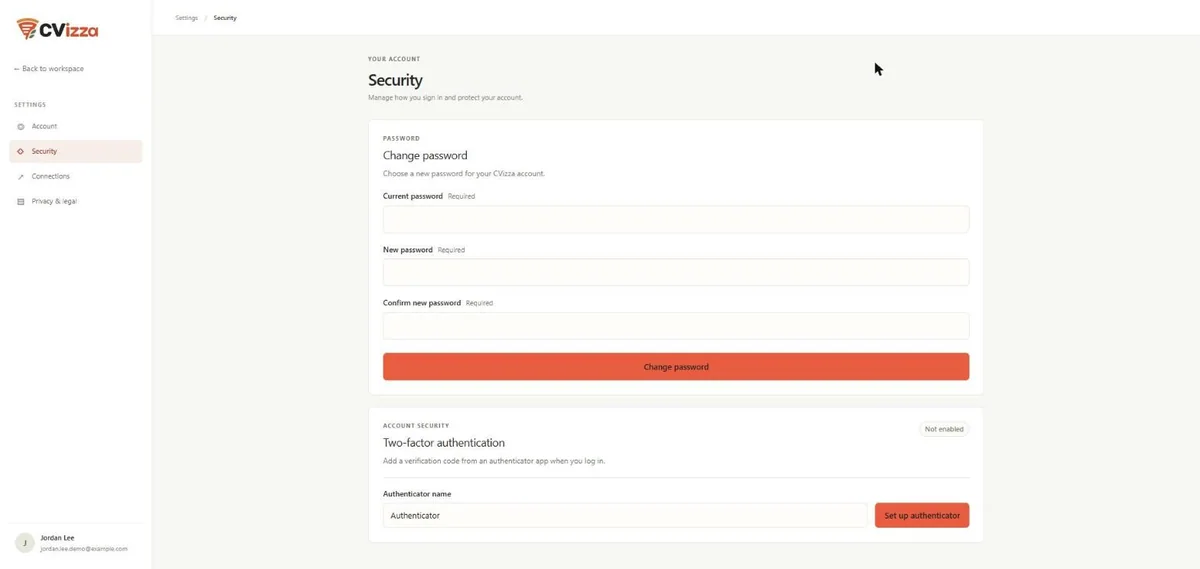
- Scroll to Two-factor authentication, below the Change password form. The status badge shows Not enabled.
Step 2: Set up your authenticator
- Optionally change the Authenticator name. A name that describes the device, such as "Phone authenticator", helps if you add more than one later.
- Select Set up authenticator.
- Open your authenticator app and add a new account by scanning the QR code on the screen. If you cannot scan it, choose manual entry in the app and type the setup key shown under "Can't scan? Enter this setup key manually".
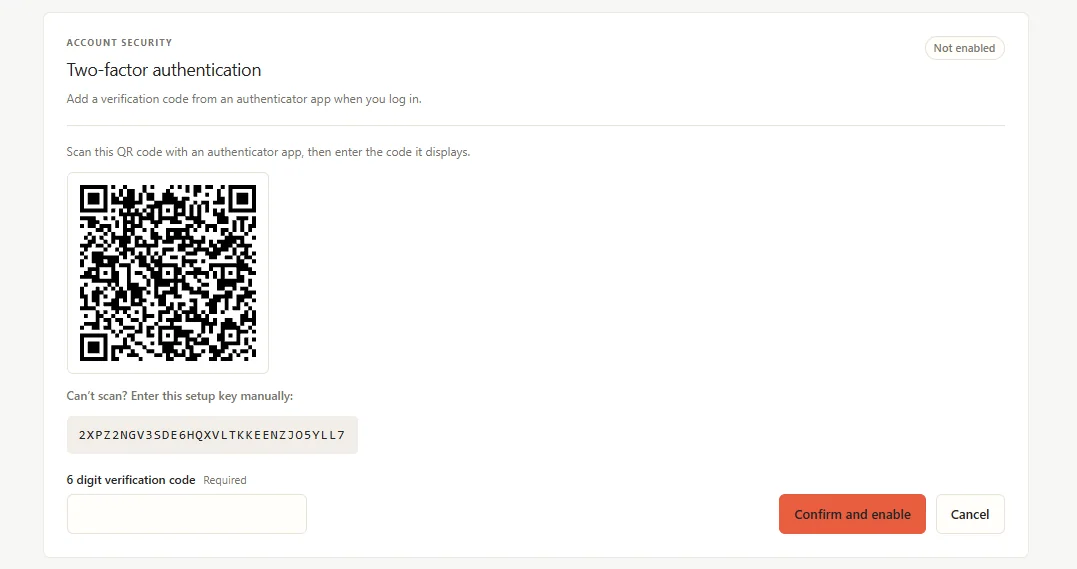
Treat the QR code and the setup key like a password. Anyone who has them can generate your codes. Do not share them or paste them into chats and documents.
Step 3: Confirm with a code
- Read the current six digit code in your authenticator app.
- Enter it in 6 digit verification code.
- Select Confirm and enable.
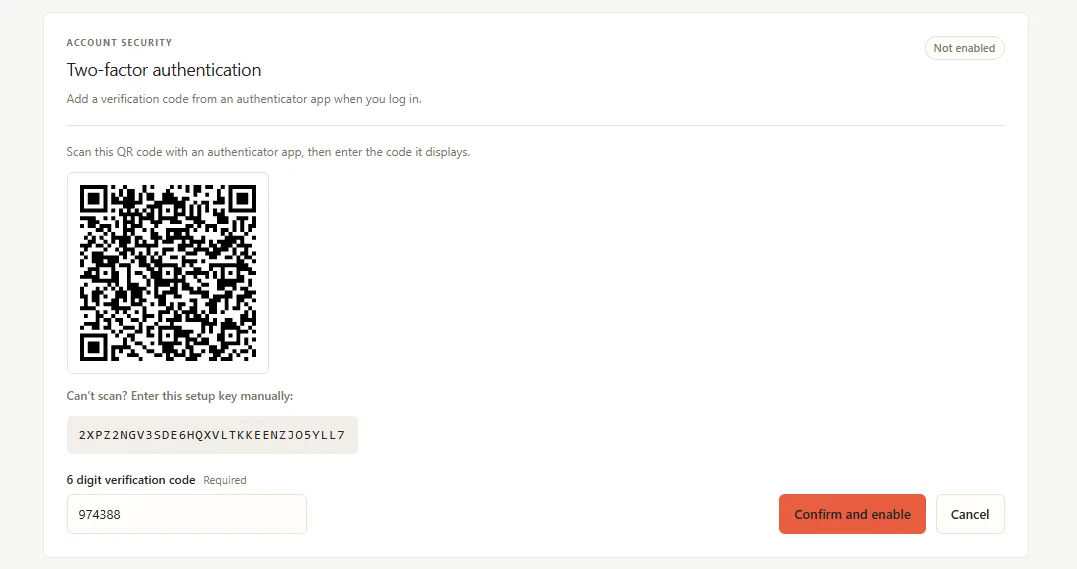
Two-factor authentication is not active until you confirm a valid code. If you select Cancel or leave the page instead, nothing is enabled. Codes change regularly, so if CVizza says the code was not accepted, wait for the next code and try again.
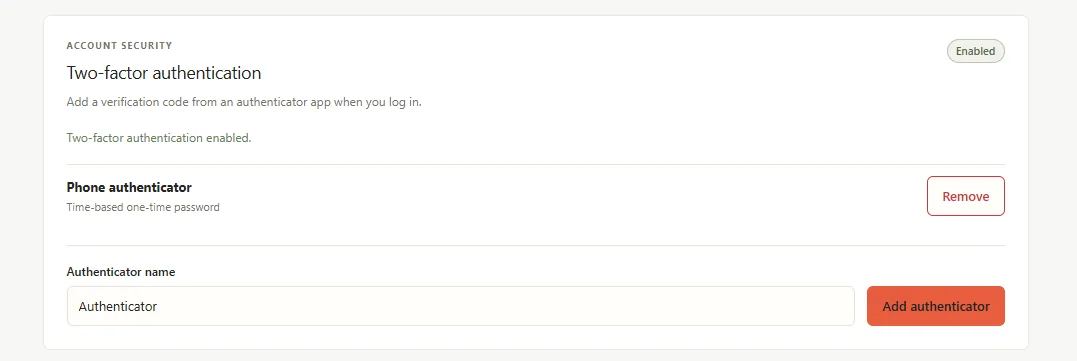
When the code is accepted, CVizza shows "Two-factor authentication enabled", the badge changes to Enabled, and your authenticator appears in the list as a time-based one-time password.
Signing in with two-factor authentication
From now on, sign in as usual with your email or username and password. CVizza then asks for the second step.
- Enter the six digit code from your authenticator app in Authentication code.
- Select Verify and log in.
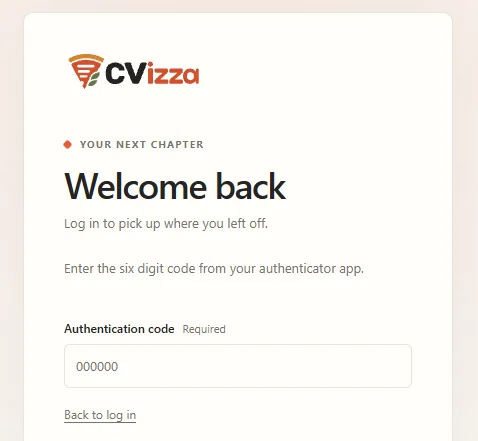
If you sign in with Google, CVizza asks for the code after Google confirms your identity. To start over, select Back to log in.
Where else you may need a code
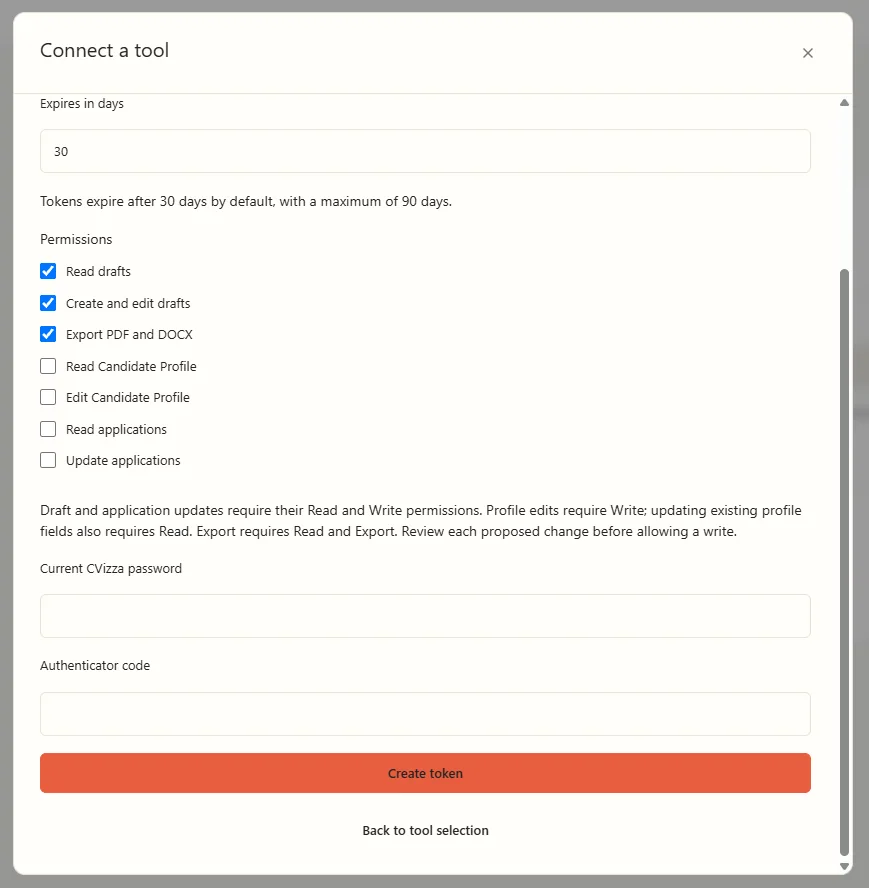
Some sensitive actions ask for your authenticator code again. For example, when you create an access token for an AI assistant with permissions that can change your data, the dialog asks for your Current CVizza password and an Authenticator code. Read-only tokens do not ask for the password. See Getting started with CVizza MCP.
Add a second authenticator
CVizza does not currently provide recovery codes. If you lose your only authenticator, you will not be able to complete sign-in on your own, so set up a backup now.
- In Two-factor authentication, enter a name in Authenticator name, for example "Tablet".
- Select Add authenticator and repeat the QR code and confirmation steps on the second device.
A code from any of your authenticators is accepted when you sign in. You can also store the setup key in a password manager, which lets you add the same authenticator to a new device later.
Remove an authenticator
- In Two-factor authentication, select Remove next to the authenticator.
- Confirm in the browser message "Remove ... as an authenticator?".
CVizza shows "Authenticator removed". Removing the last authenticator turns two-factor sign-in off, and you can set it up again at any time. Removing an authenticator does not ask for a code, so log out when you use a shared computer.
If something goes wrong
- The code is not accepted. Wait for the next code and enter the newest one. Check that the clock on your device is set automatically.
- You started setup but did not finish. Nothing was enabled. Select Set up authenticator again and scan the new QR code. The earlier, unconfirmed entry in your app will not work, so delete it from the app.
- You lost your phone but have another authenticator. Sign in with the other authenticator, remove the lost one, and add a replacement.
- You lost all your authenticators. You cannot sign in without a code. Contact CVizza using the contact details in the Privacy Policy.
What to do next
- Review your other account options in the CVizza settings, starting with changing your password on the same Security page.
- Connect an assistant safely with Getting started with CVizza MCP.
- Learn how CVizza handles your data in the Privacy Policy.