
CVIZZA BLOG
Work With Your CVs in Claude and ChatGPT
Connect CVizza to Claude Code, Claude Desktop or ChatGPT and ask an AI assistant to review your CVs, profile and applications, with you in control.
Many people already use an AI assistant to polish a summary or prepare for an interview. The awkward part is getting your own information into the conversation: copying your CV, pasting a job description, then copying the result back.
CVizza now connects directly to Claude Code, Claude Desktop and ChatGPT. Once connected, your assistant can read your CV drafts, candidate profile and applications, and, if you allow it, make changes for you. You decide what it can see and what it can change.
What You Can Ask Your Assistant
The assistant works with the same data you see in CVizza. You ask in plain language, and it uses CVizza's tools to read or update your workspace.
Here are a few things you can try:
- Tailor a CV for a role. "Rewrite the summary of my Product Designer CV for a senior UX role. Show me the new text before you save it."
- Spot gaps in your profile. "Show my candidate profile and tell me which sections are still empty."
- Start a new CV quickly. "Create a new CV called Data Analyst from my profile and choose a one-column template."
- Get an overview of your search. "List my applications and summarize where each one stands."
- Keep your tracker current. "Move my most recent application to Interview and add a note about Thursday's call."
CVizza does not run its own AI model for this. Your assistant does the thinking, and CVizza checks every request against the permissions you granted.
Three Ways to Connect
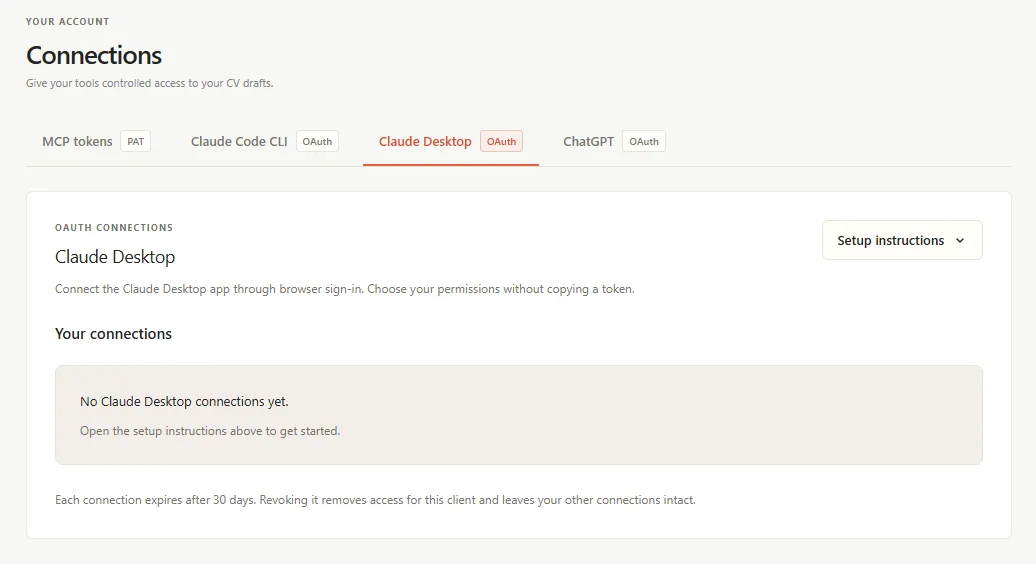
Open Settings › Connections in CVizza. Each tool has its own tab with setup instructions you can copy.
Claude Code
If you work in a terminal, add CVizza to Claude Code with one command copied from the Claude Code CLI tab, then sign in with /mcp. You can also copy suggested approval rules so that Claude Code asks before every change. Step-by-step guide: Connect Claude Code to CVizza.
Claude Desktop
Add CVizza as a custom connector in Claude Desktop. You need two values from the Claude Desktop tab: the server URL and a public client ID. There is no secret to manage. Step-by-step guide: Connect Claude Desktop to CVizza.
ChatGPT
Add CVizza as a custom MCP server in ChatGPT on the web. Paste the server URL and choose OAuth; ChatGPT finds the rest of the settings by itself. Then mention @CVizza in a conversation. Step-by-step guide: Connect ChatGPT to CVizza.
Using Codex or another MCP client? You can still connect with a personal access token from the MCP tokens tab, as described in Getting started with CVizza MCP.
You Choose What It Can Access
With Claude Code, Claude Desktop and ChatGPT, you never copy a password or token into your assistant. When you connect, CVizza opens in your browser and shows exactly which account is connecting and which permissions are requested.
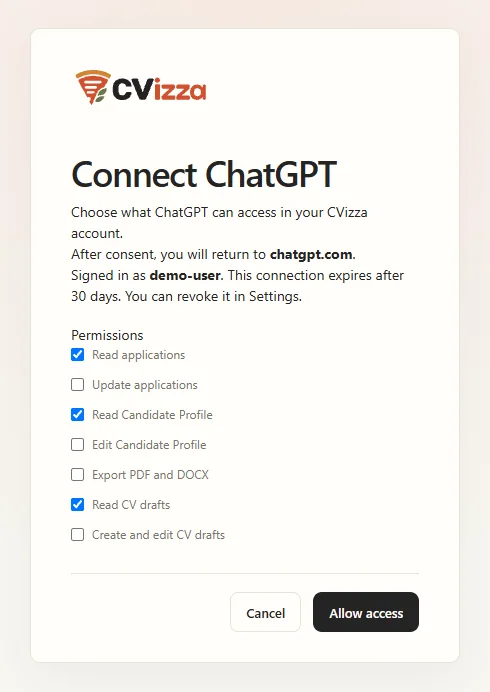
A few rules keep you in control:
- Read and write are separate. Reading your CVs, profile and applications are separate permissions from editing them. A good first step is to allow reading only.
- Changes need your password. Granting any permission that can change data asks for your current CVizza password, and for your authenticator code if you use two-factor authentication.
- You can always take access back. Each connection appears on its tab under Your connections. Select Revoke, and that assistant loses access immediately. Your other connections keep working.
- Connections expire. Each connection ends automatically after 30 days. You can connect again whenever you need it.
It also helps to keep the assistant's own approval prompts on and to ask it to show proposed text before it saves anything. Your CV and notes may contain text copied from job postings. A well-behaved assistant treats that text as information, not as instructions.
What Stays in CVizza
Some steps are deliberately left to you in the CVizza web app:
- Importing a job posting and creating an application.
- Publishing a CV version and attaching it to an application.
- Changing your profile photo.
Setting an application to Applied through an assistant only records your own update. CVizza never contacts an employer on your behalf.
Fair Use Limits
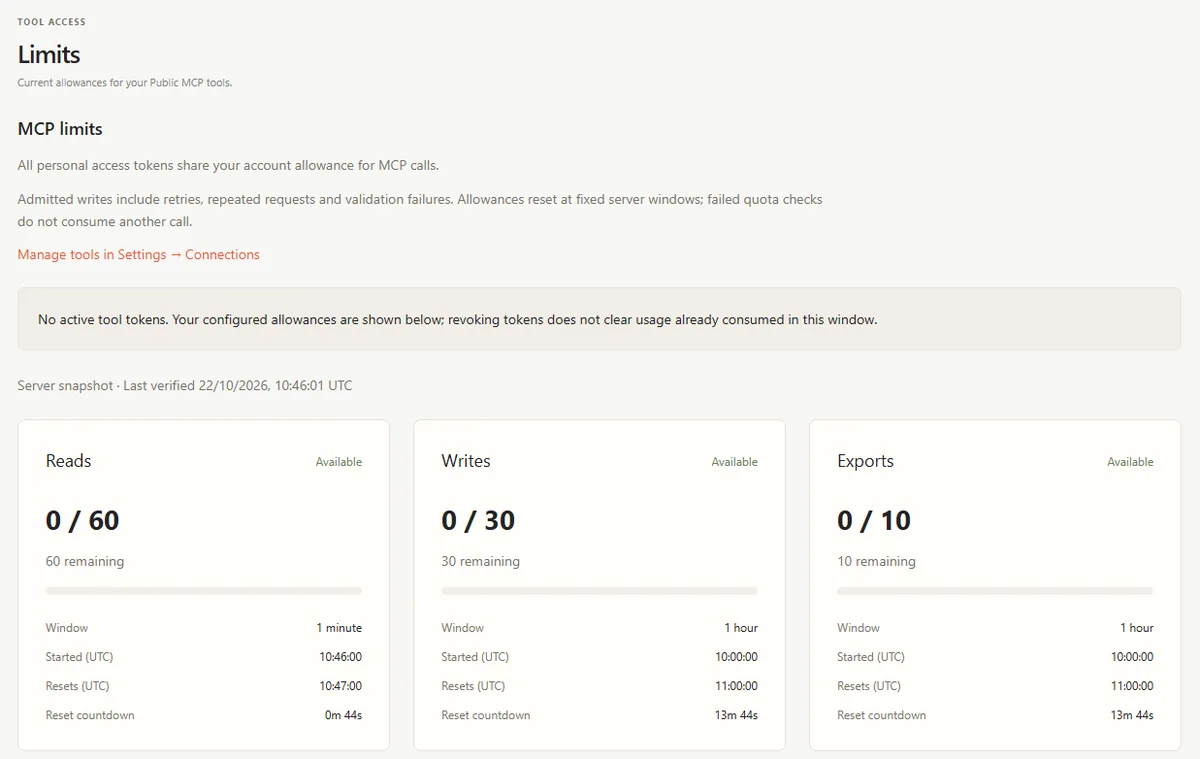
To protect your account, all your connections share one allowance: 60 reads per minute, 30 changes per hour and 10 exports per hour. You can see how much you have used under Limits in your workspace.
Try It With a Simple Question
The easiest way to start is to connect with read-only access and ask: "List my CV drafts." If the answer shows your own CV titles, everything is working. From there, you can grant more permissions when you want your assistant to help with edits.
Your job search information stays organized in CVizza. Your assistant just gets a safer, faster way to help you use it.