
Add a job to your application tracker
Import a job posting by URL or by pasting its description, check and correct the extracted details, and save it as an application in CVizza.
This guide shows how to add a job you are interested in to CVizza. You paste a link or the text of a job posting, check the details CVizza finds, correct anything that is wrong, and save the job as an application you can track. CVizza keeps this record private to you. It does not send applications to employers.
Before you start
You need a CVizza account and either the link to a public job posting or the text of the posting. Nothing else is required. You can attach a CV now or later, when you apply.
Two ways to import a job
- Job URL: paste the link and CVizza reads the page. This works for public pages. A page that requires you to sign in, or that blocks automated access, cannot be read.
- Paste description: paste the text of the posting yourself. This always works, and you can add the original link so you can open the posting later.
Step 1: Open Add application
Select Applications in the sidebar, then Add application. The Add application dialog opens with two tabs, Job URL and Paste description.
Option A: Import from a job URL
- On the Job URL tab, paste the link to the posting.
- Select Import opportunity.
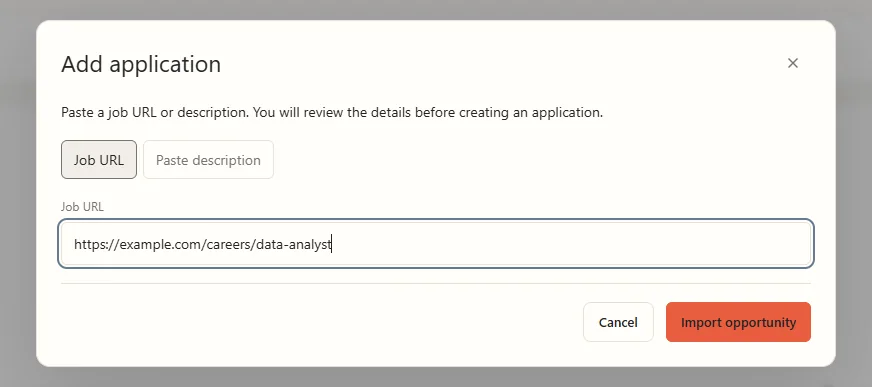
CVizza fetches the page and shows the Review the opportunity dialog when it is ready. If the page cannot be read, you see a message that explains why. In this example the link points to a page that does not exist.
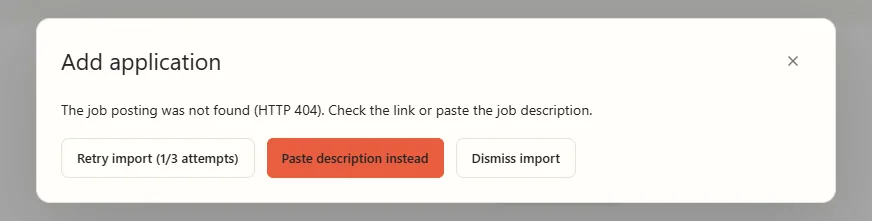
You can then:
- Select Retry import to try again. CVizza allows up to three attempts per import.
- Select Paste description instead to switch to pasting the text. The link you entered is carried over as the Original URL.
- Select Dismiss import to give up on this import.
Option B: Paste the job description
- Open the Paste description tab.
- Optionally enter the Original URL. It lets you open the posting from the application later.
- Paste the text of the posting into Job description. CVizza accepts up to 100,000 characters.
- Select Import opportunity.
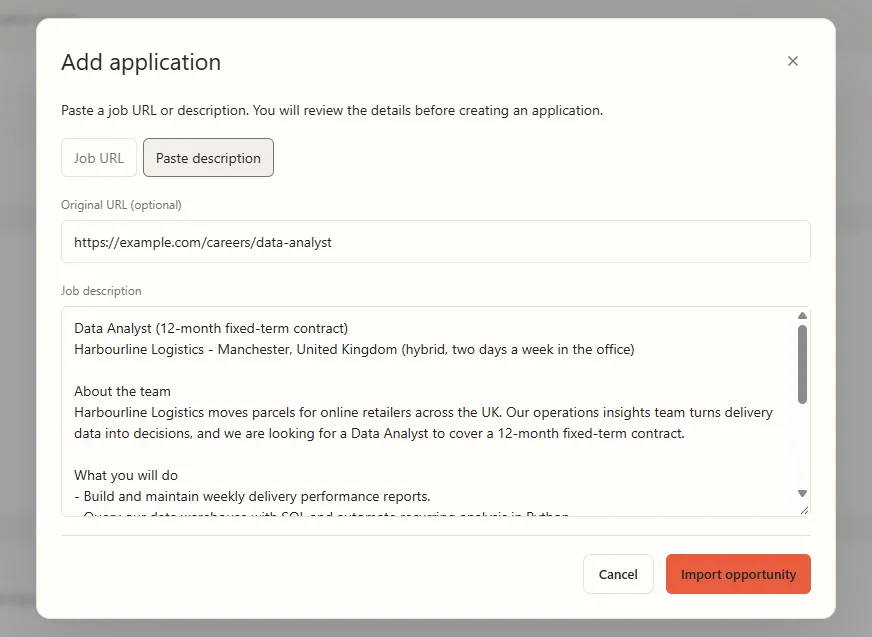
Paste the whole posting, including the salary and the closing date if they are shown. CVizza looks for details such as the title, employer, location and salary in the text.
Step 2: Review and correct the extracted details
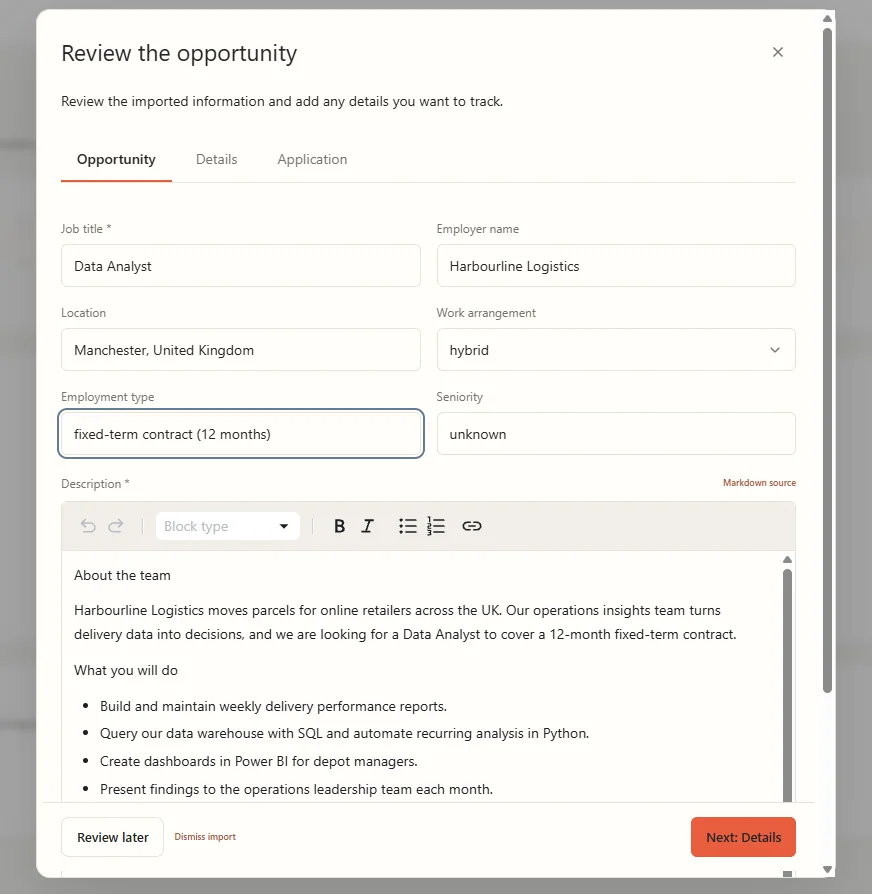
When the import finishes, the Review the opportunity dialog opens with three tabs: Opportunity, Details and Application. Nothing is saved as an application until you confirm.
On the Opportunity tab, CVizza fills in the Job title, Employer name, Location, Work arrangement, Employment type and Seniority, and shows the posting text in Description. The job title and the description are required.
Read every field and compare it with the posting. Imports can be imperfect. In this example the title includes the contract length, and the seniority is "unknown" because the posting does not say.
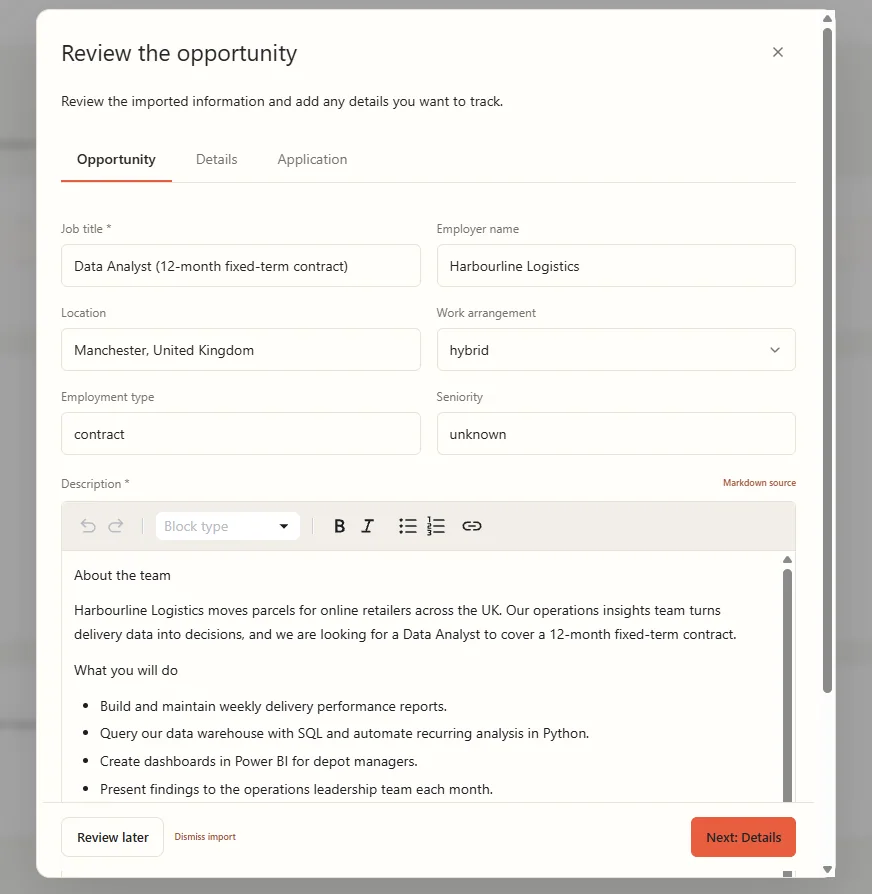
Edit the fields directly. Here the title was shortened to "Data Analyst" and the employment type was made more specific. The description supports formatting, and you can switch to Markdown source if you prefer to edit plain Markdown.
Step 3: Check salary, technologies and dates
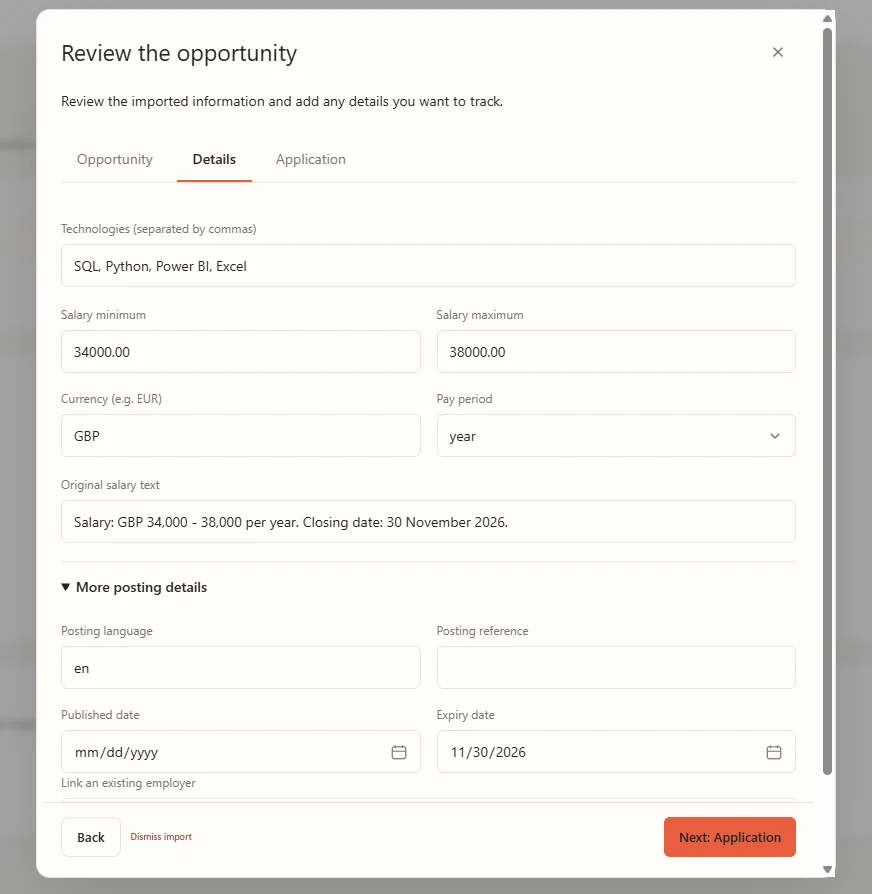
Select Next: Details, or open the Details tab.
- Technologies: skills and tools found in the posting, separated by commas. Add or remove entries.
- Salary minimum, Salary maximum, Currency and Pay period: the salary range from the posting. If the salary text is unclear, CVizza keeps it in Original salary text and leaves the structured fields for you to fill in.
- More posting details: Posting language, Posting reference, Published date and Expiry date, plus Link an existing employer. By default CVizza keeps the employer name as text from the posting.
Step 4: Set the status and save the application
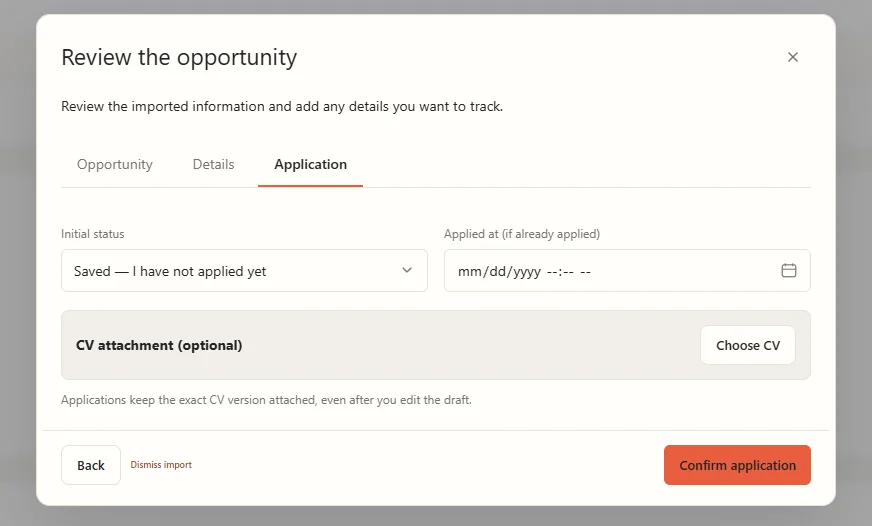
Select Next: Application, or open the Application tab.
- Choose an Initial status. Saved — I have not applied yet is the default. If you have already applied, choose the matching status and enter the Applied at date.
- Optionally select Choose CV to attach a published CV version. The application keeps that exact version, even if you edit the draft later.
- Select Confirm application.
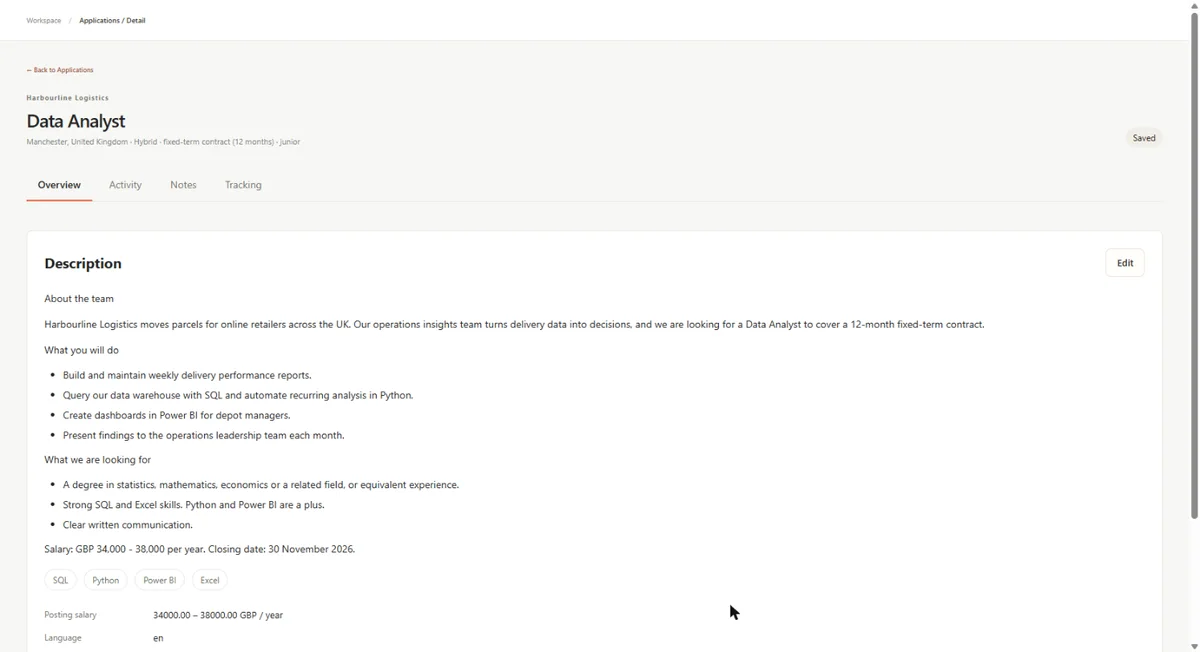
CVizza opens the new application. The header shows the employer, title, location, work arrangement, employment type and seniority. The description, technologies and salary are saved with it, and the status badge shows Saved.
Fix details after saving
You can still correct the posting after you confirm it.
- Open the application and select Edit on the Description card.
- Change any field in the Edit vacancy details dialog. It has the same fields as the review dialog, plus the Original posting URL.
- Select Save changes.
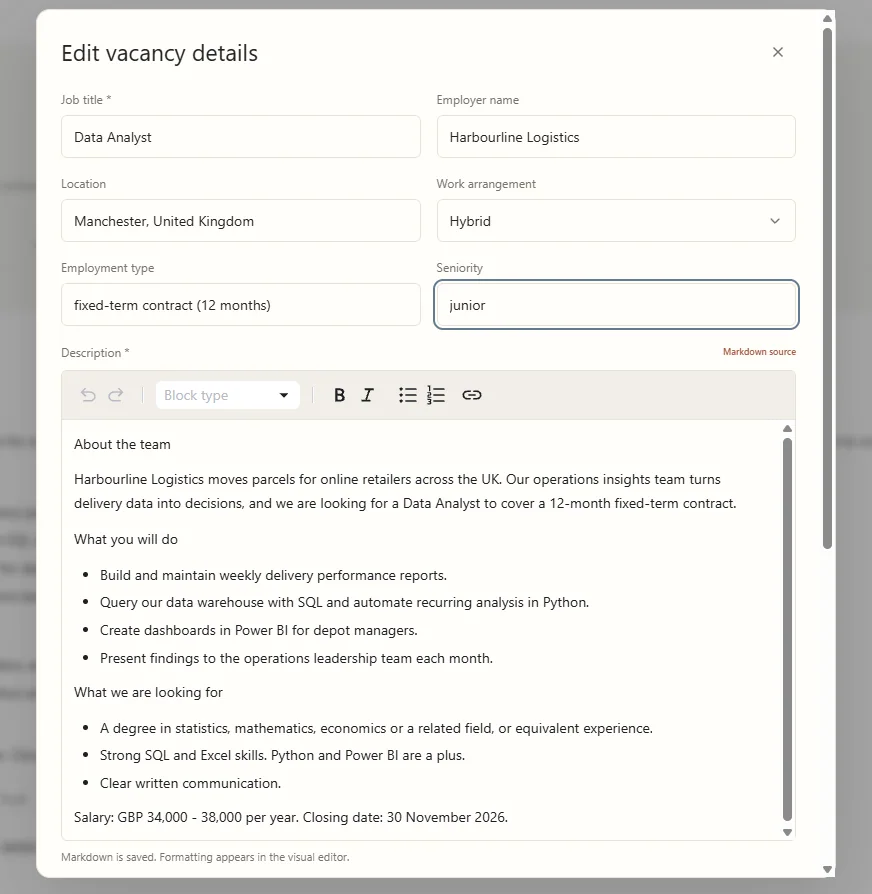
CVizza keeps your original import and saves your corrections as the current version of the posting. The application status, notes and activity history are not affected.
Review later or dismiss an import
You do not have to finish the review in one go.
- Select Review later in the review dialog to close it. The import stays in the Recent imports list at the bottom of the Applications page with the label Needs review. Open it to continue where you stopped.
- Imports that could not be read appear in the same list with the label Failed.
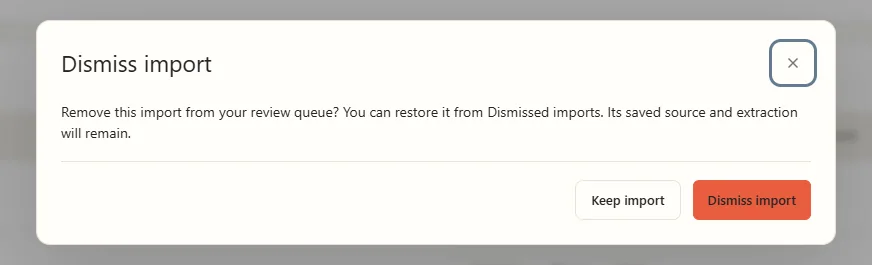
- Select Dismiss next to an import to remove it from the queue.
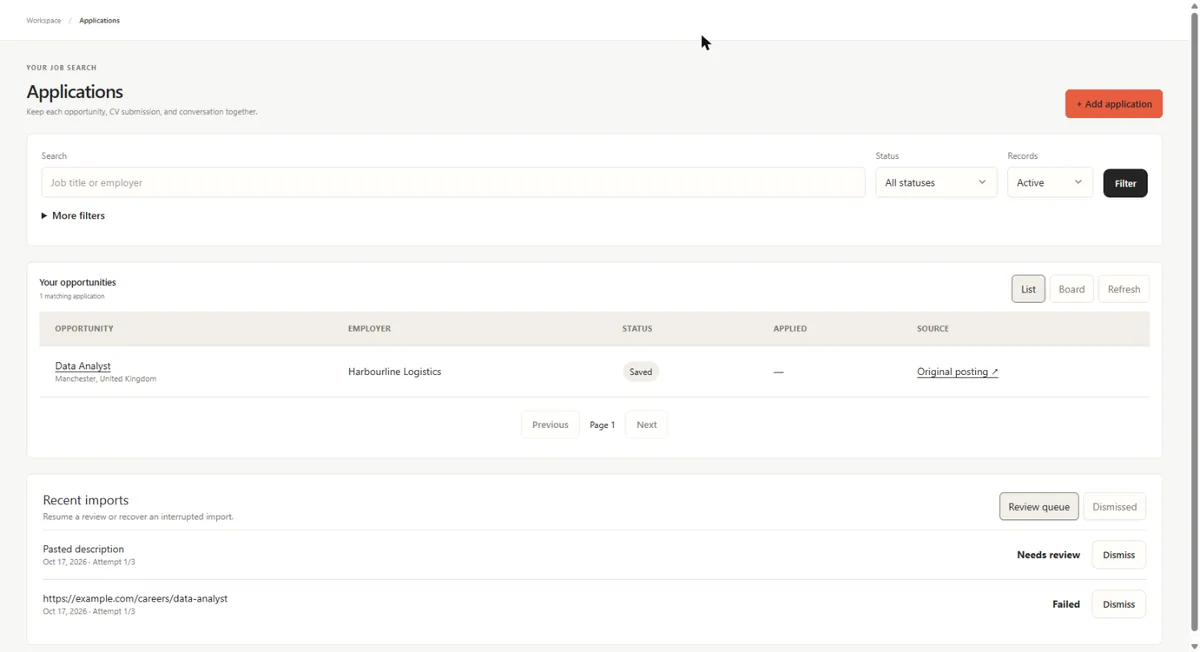
Dismissing is reversible. CVizza asks you to confirm, and the saved source and extraction remain. Select Dismissed in the Recent imports header to see dismissed imports and restore one if you change your mind.
If something goes wrong
- The link cannot be imported. Use Paste description instead, or open the posting in your browser, copy its text, and paste it on the Paste description tab.
- The extracted details look wrong. Correct them in the review dialog, or later with Edit on the Description card. Always check the title, employer and salary.
- You closed the dialog by accident. Look in Recent imports on the Applications page and open the import again.
What to do next
- Attach a CV and record what you sent, as shown in the Getting started guide.
- Prepare a CV for the role with Create and export your first CV.
- Keep your candidate profile up to date so new CVs start from current information.