Understand your job search with Insights
See how your job applications are going in CVizza Insights: activity over time, contact, interview and offer rates, response time and top job sources.
Insights turns the applications you track in CVizza into a private report: how many you sent, how many led to contact, interviews and offers, how long replies took, and which posting sources and companies moved forward. Everything is calculated from what you have recorded yourself, and only you can see it.
Before you start
Insights reads your existing applications, so it is only as complete as your tracker. You need at least a few applications with an application date. If you are just starting, follow Add a job to your application tracker and Track your job applications first.
An application gets its application date when you set it yourself or when you move it to Applied for the first time. Applications that are still Saved, without a date, are not counted as sent.
Open Insights
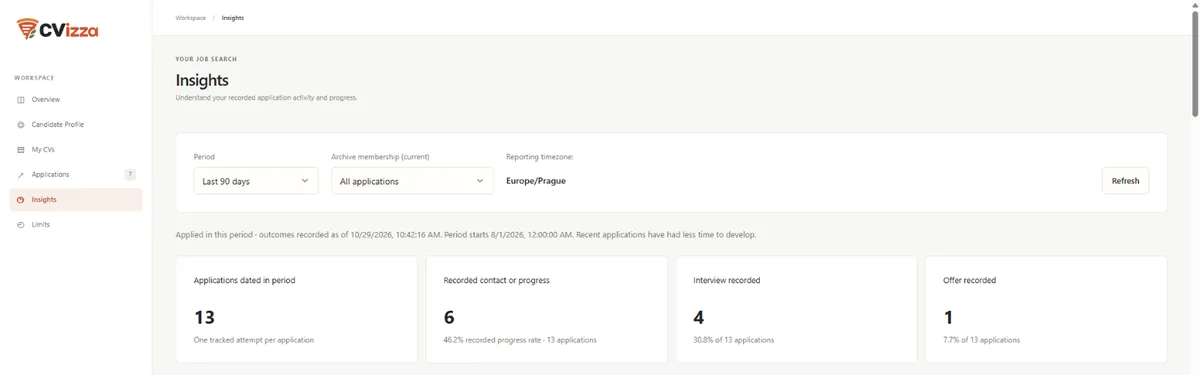
Select Insights in the sidebar. At the top of the page you choose what the report covers:
- Period: Last 30 days, Last 90 days (the default) or Last 365 days.
- Archive membership (current): All applications (the default), Active only or Archived only.
- Reporting timezone: taken from your browser, so days and weeks start at your local midnight.
Select Refresh to recalculate the report after you update applications in another tab. Your filters are kept in the page address, so the browser's Back and Forward buttons return to the previous view.
Read the summary
The four cards describe the applications whose application date falls in the selected period:
| Card | What it counts |
|---|---|
| Applications dated in period | Each application once, by its application date |
| Recorded contact or progress | Applications with a recruiter contact, an interview event, or a Screening, Interview or Offer status |
| Interview recorded | Applications with an interview event or an Interview status |
| Offer recorded | Applications that reached the Offer status |
The percentages use the first card as the denominator. Outcomes include everything recorded up to now, even if it happened after the period ended. Applications you sent recently have simply had less time to get a reply, so a low rate for the last few days is normal.
These are counts of what you recorded, not employer response rates. An interview you never logged does not appear, and an Offer does not mean the offer was accepted.
See your activity over time
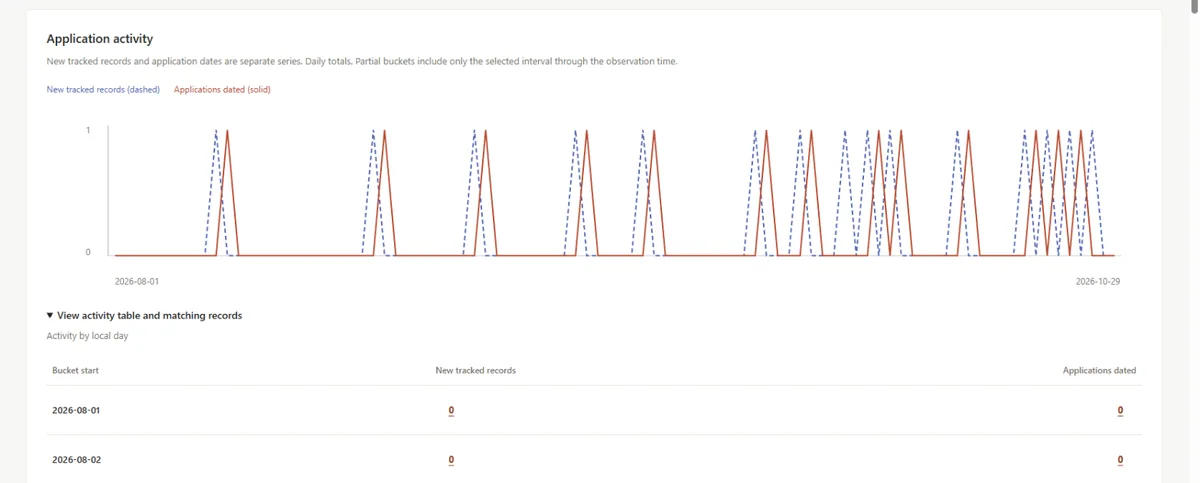
Application activity shows two lines for the period:
- New tracked records (dashed): the days you added jobs to CVizza.
- Applications dated (solid): the days you applied.
The two often differ, for example when you save a job today and apply next week, or record an old application after the fact. The 30- and 90-day views show daily totals, and the 365-day view shows weeks starting on Monday. Open View activity table and matching records to see the same numbers as a table.
Follow your milestones and outcomes
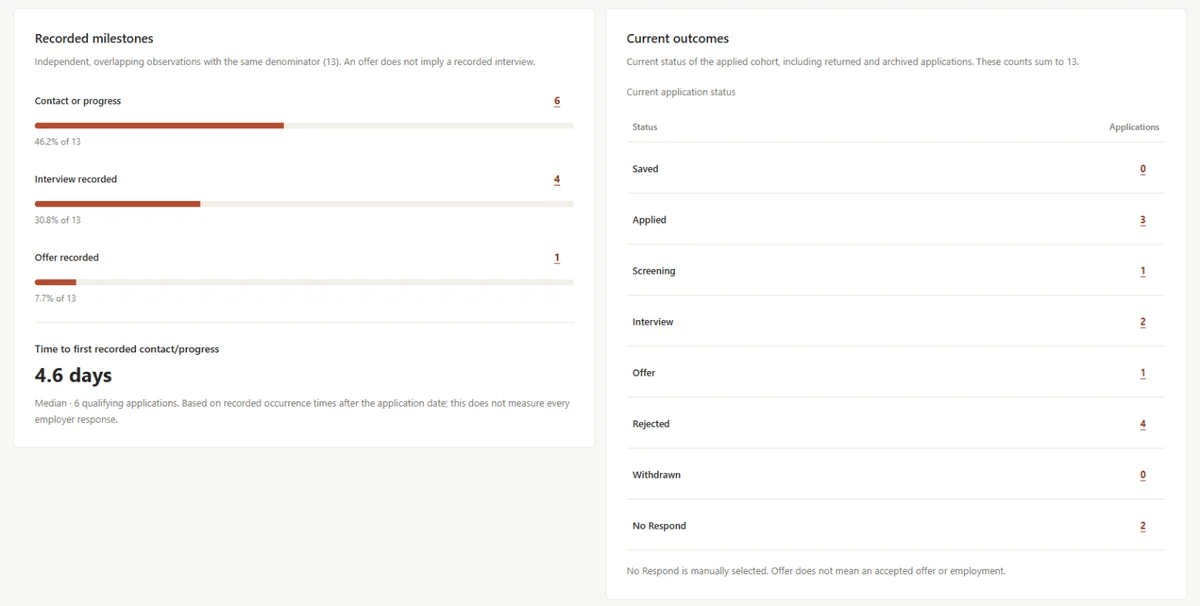
Recorded milestones puts contact or progress, interviews and offers side by side against the same total. They overlap: an application that reached an interview also counts as progress. If an interview was followed by a rejection, the interview still counts, because it happened.
Below the bars, Time to first recorded contact/progress shows the median number of days between the application date and the first recruiter contact, interview or progress status, together with how many applications it is based on.
Current outcomes shows where the same applications stand today, from Applied to Rejected or No Respond. These counts add up to the total in the first card, archived applications included.
Compare sources, companies and work arrangements
Three tables break the same applications down by group, each with its own progress, interview and offer rates:
- Posting sources: the website of the original job posting, such as a job board or a company careers site. Applications created from pasted text appear as Unknown / no URL.
- Companies: the employer from the job details.
- Work arrangement: Remote, Hybrid, Onsite or Unknown.
Source and company tables show up to ten groups, and the rest are combined into Other. Groups with fewer than five applications are marked Small sample: with so few applications, one reply changes the rate a lot, so don't draw conclusions from them alone.
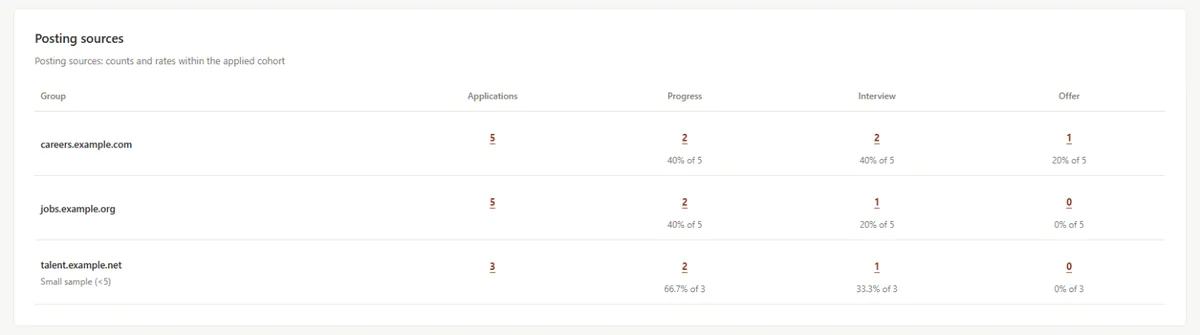
The tables use the current job details. If you correct a company name or work arrangement on an application, it moves to the new group.
Open the applications behind a number
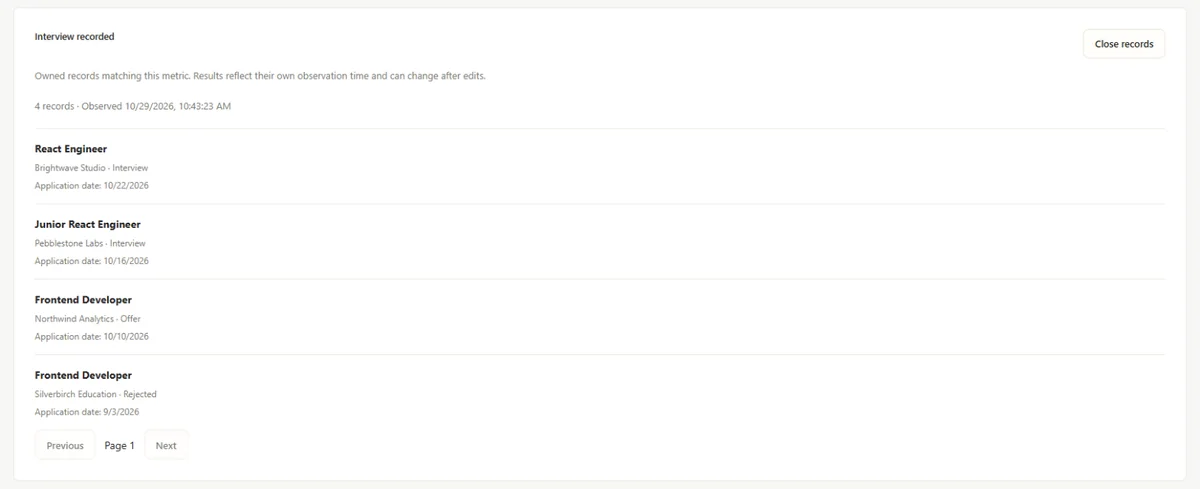
Every number on the page can be selected, including the summary cards, the activity table, the outcome counts and the group tables. Insights then lists the matching applications at the bottom of the page with their title, company, status and application date, 20 per page.
Select a title to open that application and update it. Select Close records to return to where you were.
Check data coverage
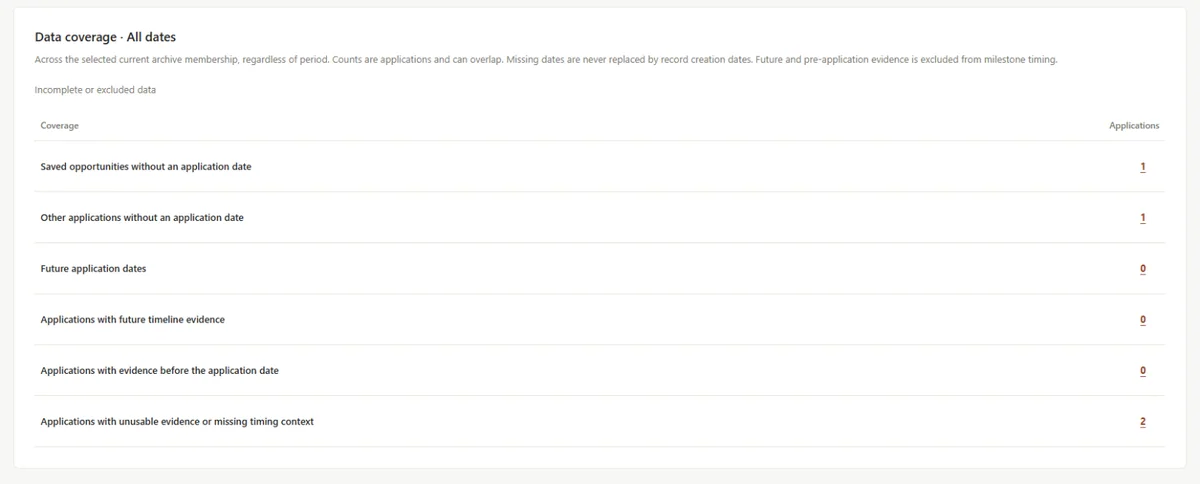
Data coverage · All dates shows applications the report could not use fully, regardless of the selected period:
- Saved opportunities and other applications without an application date. They are never counted as sent by the date you added them.
- Future application dates and timeline entries dated in the future.
- Entries dated before the application date, which are left out of the timing figures.
Select a number to see those applications and fix their dates. An application can appear in more than one row.
For the exact rules behind each figure, open Metric definitions and limitations at the end of the page.
Keep your numbers accurate
- Set the application date when you apply, or move the application to Applied on the day you send it.
- Log recruiter calls and interviews as events on the Activity tab, with the date they happened. Events can be added later with an earlier date.
- Update the status when you hear back, and use No Respond once you stop waiting.
- Archive applications you are done with. They stay in the report while All applications is selected, so your history remains complete.
Your privacy
Insights is calculated on demand from your own applications and is visible only to you. It is not shared with employers, and AI assistants connected to your account through CVizza MCP do not have access to it. The report is not stored: when you sign out, it is cleared from the page.
What to do next
- Update your applications with Track your job applications.
- Add more jobs with Add a job to your application tracker.
- Tailor a CV for the roles that are moving forward with Create and export your first CV.